Invite People to Calendar Events by Name, Not Email
Published: September 9, 2026
Stop Typing the Same Email Addresses Over and Over
If you invite the same handful of people to events all the time — your partner, your team, a regular co-organizer — typing their email address into every event gets old fast. Attendee aliases fix that: save a short name once, and from then on just mention that name in your event description. Text2Event resolves it to the right email and adds them as an attendee automatically.
How to Invite People by Name
Step 1: Save an Alias on Your Profile
Sign in and open your Text2Event profile. Under Attendee aliases, add a name and the email address it should map to — for example, the alias "owl" mapped to a teammate's email. You can save as many as you need, and separate multiple names for the same person with commas (handy for nicknames or names in another language).
Step 2: Mention the Name in Your Event — That's It
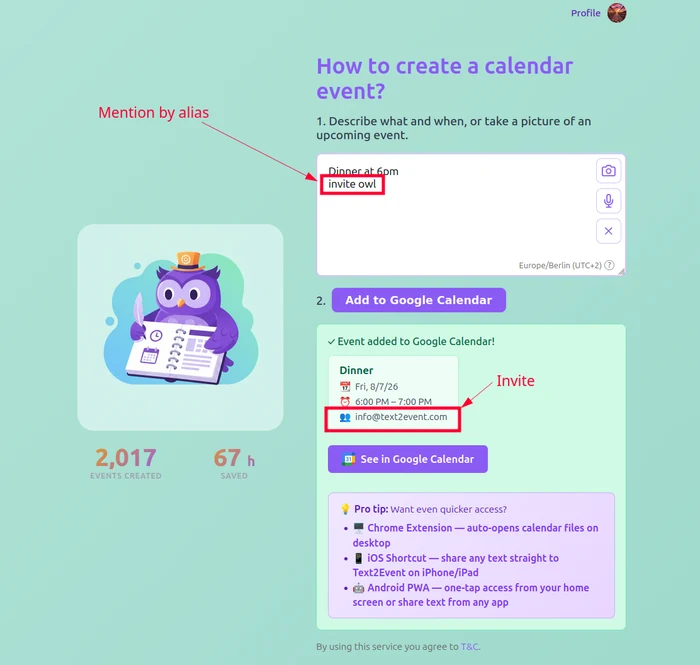
Next time you create an event, just write something like "Dinner at 6pm, invite owl." Text2Event recognizes the alias, resolves it to the saved email, and adds that person as an attendee on the event — no address typed, no extra step.
Where the Attendee Shows Up
Once resolved, the attendee is attached everywhere the event goes:
- 📄 The .ics file — downloads with the attendee already included
- 📅 Add to Google Calendar / Outlook links — open pre-filled with the attendee
- 🔄 Synced Google Calendar events — if you use automatic sync, the attendee is added there too
Why It's Worth Setting Up
- ⌨️ No more retyping addresses — save an alias once, reuse it forever
- 🗣️ Natural to write — "invite mom" or "invite the team" reads like a normal sentence
- 🌍 Multiple names, one person — cover nicknames and other languages with comma-separated names on the same alias
- 🆓 Free on every plan — no Pro subscription required
- 🔒 Only resolves what you've saved — unrecognized names are simply skipped, not guessed
Try It Now
Set up your first alias and stop typing email addresses into your events.
Free on every plan • No extra typing • Works with Google Calendar & Outlook
Attendee Aliases FAQs
- Q: What is an attendee alias in Text2Event?
- A: It's a short name — like "mom", "team", or a nickname — that you map to a real email address once on your profile. After that, mentioning the name in any event ("invite mom") automatically adds that person as an attendee, without you typing their email again.
- Q: How do I set up an attendee alias?
- A: Sign in and open your Text2Event profile. In the Attendee aliases section, add a name and the email it should resolve to, then save. You can add as many aliases as you like.
- Q: Can one alias have multiple names?
- A: Yes. Separate multiple names for the same person with commas — handy for nicknames or names in other languages. All of them resolve to the same email.
- Q: Where do resolved attendees show up?
- A: Everywhere the event goes — the downloaded .ics file, the Add to Google Calendar and Outlook links, and events created through automatic Google Calendar sync all include the resolved attendee.
- Q: What happens if I mention a name that isn't a saved alias?
- A: If the mention isn't a valid email address and doesn't match a saved alias, it's simply left out as an attendee — the rest of the event is created normally. Nothing breaks; you just won't get an unresolved guess added to your event.
- Q: Do I need Text2Event Pro to use attendee aliases?
- A: No. Saving and using attendee aliases is free for every account. Pro adds unlimited event generation, multi-event queries, and automatic Google Calendar sync on top.
- Q: Is this different from just typing someone's email in the event text?
- A: No — typing a real email address in your event text still works exactly as before and adds that person as an attendee. Aliases are a shortcut for the people you invite repeatedly, so you don't have to remember or type their address every time.