Create a Calendar Event from a Photo or Screenshot
Published: June 24, 2026
Turn a Photo or Screenshot Into a Calendar Event
Not every event arrives as text you can copy. Sometimes it's a sticky note on the fridge, a poster taped to a lamppost, or a screenshot buried in your camera roll. With Text2Event you no longer have to retype any of it. Take a picture or grab a screenshot, hand it to Text2Event, and it reads the date, time, and location for you and builds a ready-to-save event for Google Calendar, Outlook, or any calendar app.
In the video above, a handwritten note is photographed and lands in Google Calendar moments later — no keyboard involved.
How It Works
📸 Step 1: Take a Photo or Screenshot
Snap a picture of anything with event details on it, or take a screenshot of what's on your screen.
🖼️ Step 2: Upload the Image
Pass the image to the Text2Event web app. It reads the text right out of the picture — printed or handwritten.
📅 Step 3: Add to Your Calendar
Review the extracted details and click to add the event to Google Calendar, Outlook, or download a calendar file for any app.
Cool Things You Can Photograph
- ✍️ A handwritten note — a reminder scribbled on paper or a date jotted on a sticky note
- 📜 A street poster — that gig, market, or festival advertised on a lamppost or wall
- 📄 A flyer or noticeboard — community events, club meetings, school announcements
- 🍽️ A restaurant or café board — quiz night, live music, a tasting evening
- 💍 A printed invitation — a wedding, birthday, or party card you don't want to lose
- 🏛️ An exhibit or venue sign — opening hours, a tour time, a one-off talk
- 🏋️ A class or gym schedule — printed timetables pinned to the wall
Capture Screenshots, Too
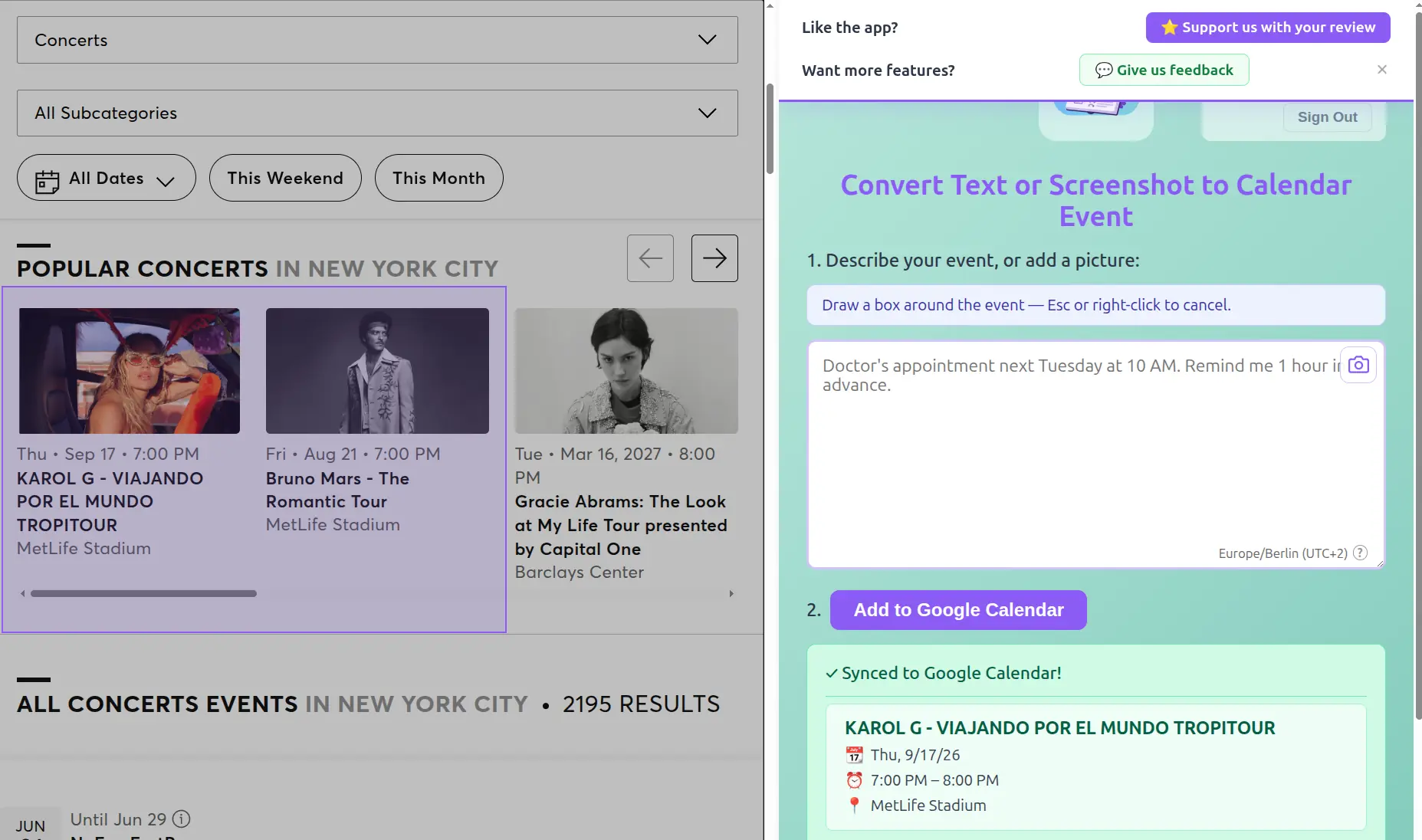
Screenshots work just as well as photos. Grab one of an Instagram story, a PDF schedule, a forwarded message, or any page where the details live inside an image. Text2Event reads the text in the screenshot and turns it into an event.
Select an Area Right in Chrome
The Text2Event Chrome extension makes this even faster: you can select an area on a page to take a screenshot, and it's automatically passed to Text2Event. This is perfect for pages where it's hard to select text — awkward layouts, text baked into images, or sites that block copying. Just drag a box around the event details and let Text2Event do the rest.
Why People Love It
- 📝 No retyping — dates, times, and places are read straight from the image
- ✍️ Reads handwriting — even a quick scribble on paper
- 🌍 Works in many languages — photograph a poster abroad and still get the right event
- ⏱️ Fast — from photo to saved event in seconds
- ⭐ Try it free for 14 days — photo and screenshot recognition is a Pro feature with a 14-day trial for new users
Try It Now
Point your camera at the next note, poster, or flyer you see — or screenshot what's on your screen — and let Text2Event build the event for you.
Pro feature • Free 14-day trial • Works instantly
Photo & Screenshot to Calendar FAQs
- Q: Can Text2Event read handwritten notes?
- A: Yes. Take a photo of a handwritten note — a reminder, a date scribbled on paper, or an appointment card — and Text2Event reads the handwriting, extracts the date, time, and location, and builds a ready-to-save calendar event.
- Q: Can I create an event from a photo of a poster or flyer?
- A: Absolutely. Snap a picture of a street poster, concert flyer, or noticeboard announcement and Text2Event pulls out the event details so you can add it to your calendar in seconds.
- Q: How do I turn a screenshot into a calendar event?
- A: Take a screenshot of any page — an Instagram story, a PDF, an email, or a messy web layout — and pass the image to Text2Event. It reads the text in the image and generates a calendar event automatically.
- Q: Can the Chrome extension screenshot part of a page?
- A: Yes. The Text2Event Chrome extension lets you select an area on a page to capture as a screenshot, which is sent straight to Text2Event. This is ideal for pages where text is hard to select due to a bad layout or copy restrictions.
- Q: Does it work with photos in other languages?
- A: Yes. Text2Event recognizes text in many languages, so you can photograph a poster or note in another language and still get a correctly filled calendar event.
- Q: Is creating events from photos free?
- A: Creating events from a photo or screenshot is a Pro feature. New users get a free 14-day trial to try it, and after that it requires an active subscription. Converting plain text to a calendar event is always free with no sign-up.