Turn a Gmail Email Into a Calendar Event in One Click
Published: September 9, 2026
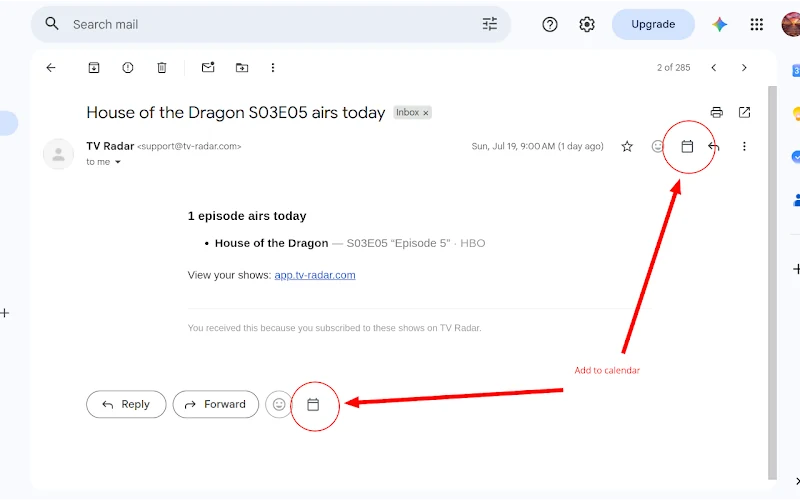
A Calendar Button, Right Inside Gmail
Most "email to calendar" tools still make you copy the email text, switch tabs, and paste it somewhere. The Text2Event Chrome extension skips all of that. It adds a small calendar icon directly into Gmail Desktop's toolbar — the same row as Reply, Forward, and React — so turning an email into a calendar event is a single click.
How to Convert an Email in Gmail Desktop Into a Calendar Event
Step 1: Install the Chrome Extension
Add the Text2Event Chrome extension from the Chrome Web Store. It works with Gmail Desktop in Chrome — no account setup required to get started.
Step 2: Open Any Email
Open the email you want to turn into an event — a booking confirmation, a concert reminder, a meeting invite, anything with a date in it.
Step 3: Click the Calendar Icon
Look for the calendar icon next to Reply and Forward at the bottom of the message, or next to the react/reply icons at the top. Click it, and the email's subject and body are sent straight to the Text2Event side panel — no copying, no pasting.
Step 4: Review and Save Your Event
Text2Event extracts the date, time, location, and any recurrence from the email and shows you a ready-to-save event. Download the .ics file or add it directly to Google Calendar or Outlook.
Why the Gmail Button Is Faster
- 📧 No copy-paste — the button reads the open email for you
- 🖱️ One click, two places — available in the top toolbar and the bottom Reply/Forward bar of every message
- 🔒 Only the open email — nothing else in your inbox is read or touched
- 📅 Works with any calendar — get an .ics file plus direct Google Calendar and Outlook links
- 🔁 Catches recurring events — "every Tuesday" or "monthly on the 1st" becomes a proper recurrence rule
Try It Now
Install the Chrome extension, open an email with a date in it, and click the calendar icon — your event is ready in seconds.
No signup • Free • Works instantly
Gmail to Calendar Event FAQs
- Q: How do I convert a Gmail email into a calendar event?
- A: Install the Text2Event Chrome extension, open any email in Gmail Desktop, and click the calendar icon next to Reply and Forward (or in the top toolbar). The email's subject and body are sent to the Text2Event side panel, which extracts the date, time, and location and gives you a ready-to-save event.
- Q: Do I need to copy and paste the email text?
- A: No. That's the whole point of the Gmail button — it reads the open email for you and sends it straight to Text2Event. No selecting text, no switching tabs, no copy-paste.
- Q: Where does the calendar button appear in Gmail?
- A: In two places on every message — next to the react/reply icons at the top of an open email, and next to the Reply and Forward buttons at the bottom. Both send the same email to Text2Event.
- Q: Does this work with Gmail on mobile?
- A: The Chrome extension button is built for Gmail Desktop in the Chrome browser. On mobile, you can still copy the email text and paste it into the Text2Event web app or use the extension's other capture methods.
- Q: Which calendar apps does the event work with?
- A: Any of them. Text2Event generates a standard .ics file plus direct Google Calendar and Outlook links, so the event opens correctly in Google Calendar, Outlook, Apple Calendar, and more.
- Q: Is the Chrome extension free?
- A: Yes. Installing the extension and converting emails to calendar events is free, with no sign-up required to try it.
- Q: Does Text2Event get access to my whole Gmail account?
- A: No. The extension only reads the email you're currently viewing when you click the button — it doesn't scan your inbox, and it never sends or deletes anything on your behalf.