How to Create an Event in Outlook (Web, Desktop and Phone)
Published: October 22, 2026
The short answer
In Outlook on the web or the new Outlook, open the Calendar, click the day and time you want (or select New event), type a title, set the time and place, and select Save. If you invited people, you select Send instead. The details below cover desktop Outlook and your phone, and the last part shows how to skip the typing when the details are already in an email or a message.
Event, appointment or meeting?
Outlook uses three words for nearly the same thing:
- Appointment: an event for yourself, such as a lunch or a medical appointment. You save it.
- Meeting: an event you send to other people. It has attendees and you send it.
- Event: the general word for both.
Outlook on the web and the new Outlook
- Select the Calendar icon.
- Click the day and time you want, or select New event at the top.
- Enter a title. Turn on All day if it lasts all day.
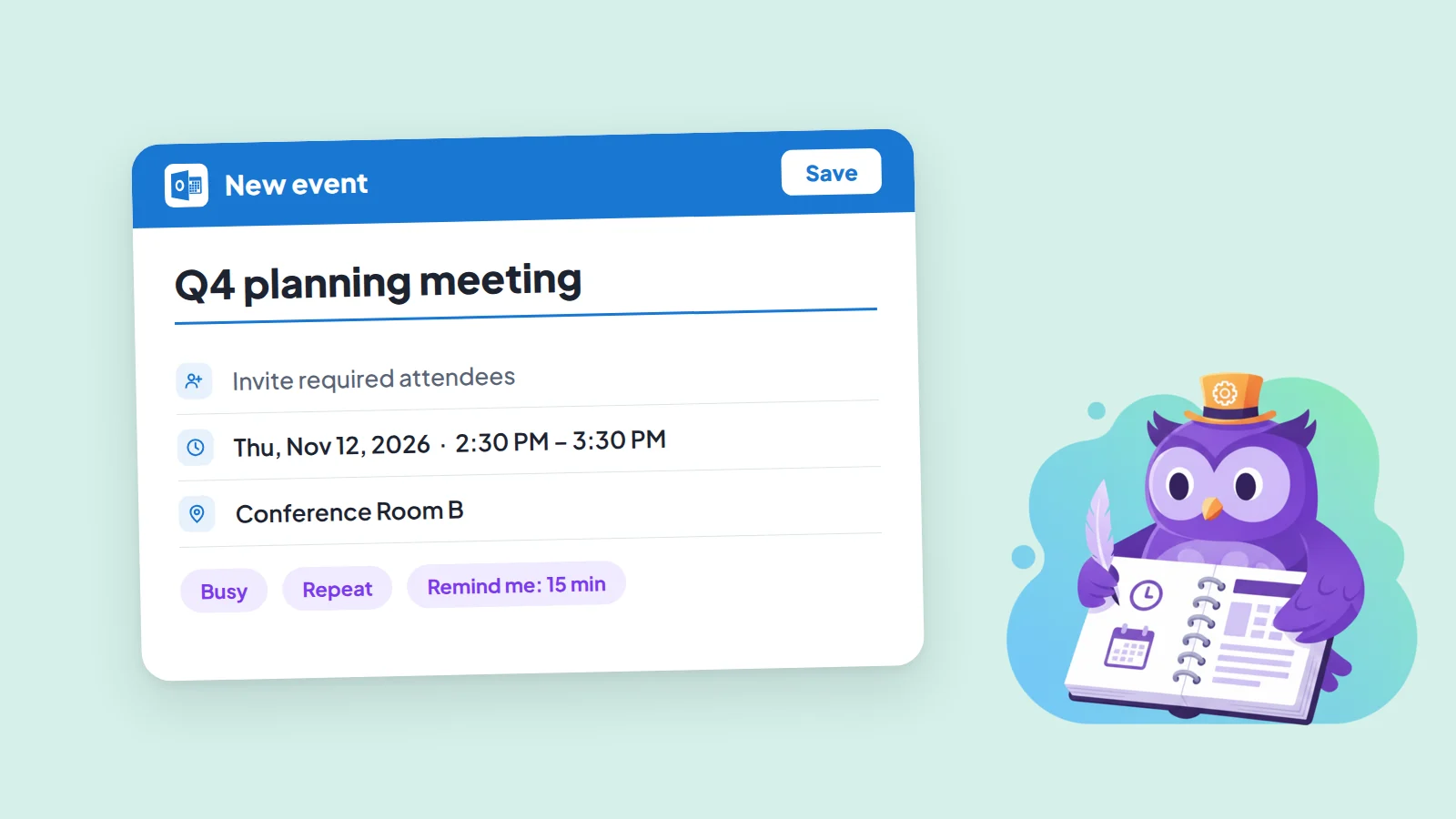
- Add people in Invite required attendees if it is a meeting. Their availability appears near the date and time.
- Enter a location in the room or location box.
- Open More details for the full form: status (Busy), categories, response options, optional attendees, Repeat and Remind me. The default reminder is 15 minutes before.
- Select Save for an event for yourself, or Send for a meeting.
In the classic version of Outlook on the web, use New > Calendar event instead; the fields are the same.
Outlook for Windows (classic)
- Switch to the Calendar folder and select New Appointment. You can also right-click a time block in the calendar and choose New Appointment, or double-click a blank spot.
- Enter a subject, location, and start and end times. You can type words such as "tomorrow" in the time fields.
- Use the Options group to set Show As, add Recurrence or change the Reminder (15 minutes by default).
- Select Save & Close.
The keyboard shortcut is Ctrl+N in the Calendar folder and Ctrl+Shift+A from any other folder. To turn an appointment into a meeting, select Invite Attendees in the ribbon.
Outlook on your phone
Open the Outlook app, choose Calendar at the bottom and tap the + icon. The steps are the same on iPhone and Android. Microsoft notes that creating or editing recurring events in the mobile app is not available to every user. If it is missing for you, create the repeating event on the web or on a computer and it syncs to your phone.
Skip the typing: create the event from text
When the date, time and place are already written in an email, a chat or a note, retyping them is the slow part. Copy that text into Text2Event and it reads the date, time, place and description, and sets a repeat if the text mentions one. Then pick how to open it in Outlook:
- Add to Outlook Live opens a pre-filled event in Outlook.com. Use it for personal accounts (outlook.com, hotmail.com, live.com).
- Add to Microsoft 365 opens a pre-filled event in Outlook on the web. Use it for work or school accounts.
- The downloaded .ics file opens in desktop Outlook, the new Outlook and Outlook for Mac. Double-click it and choose Save & Close, or drag it onto your calendar. Use the .ics file for repeating events, because the Outlook links open a single event.
The full walkthrough for emails is in How to create an Outlook calendar event from an email. For other text, such as chat messages and notes, see convert text into an Outlook calendar event. If you read mail in Outlook on the web, the Chrome extension removes the copy and paste, as shown in How to create a calendar event from an email in Outlook, and on Android you can share the text to the Text2Event app. If you wonder whether Outlook can do any of this by itself, here is what it can and cannot automate.
Try it now
Paste the details of your next event and open the pre-filled Outlook event in seconds.
No signup • Free • Works instantly
Creating Outlook Events FAQs
- Q: How do I create an event in Outlook?
- A: In Outlook on the web or the new Outlook, open the Calendar, click a day and time or select New event, type a title, set the time and location, then select Save (or Send if you invited people). In desktop Outlook, open the Calendar and select New Appointment, then Save & Close. On a phone, open the Calendar tab and tap the + icon.
- Q: What is the difference between an event, an appointment and a meeting in Outlook?
- A: An appointment is an event just for you, such as a lunch or a doctor's visit. A meeting is an event you send to other people, so it has attendees and you select Send. "Event" is the general word for both. In desktop Outlook you can turn an appointment into a meeting with Invite Attendees.
- Q: How do I create a recurring event in Outlook?
- A: In the full event form, set Repeat (Recurrence in desktop Outlook) and choose how often it happens. Microsoft notes that creating or editing recurring events in the Outlook mobile app is not available to every user, so if you cannot do it on your phone, create it on the web or on a computer and it syncs.
- Q: Can I create an Outlook event from an email without retyping it?
- A: Yes. Copy the part of the email with the details into Text2Event and open the pre-filled event in Outlook, or open the downloaded .ics file. Text2Event reads the date, time and place, so you do not retype them.
- Q: What is the difference between Add to Outlook Live and Add to Microsoft 365?
- A: "Add to Outlook Live" opens a pre-filled event in Outlook.com and is for personal accounts such as outlook.com, hotmail.com and live.com. "Add to Microsoft 365" opens one in Outlook on the web for work or school accounts. To use desktop Outlook, open the downloaded .ics file instead.
- Q: How do I add a calendar file (.ics) to Outlook?
- A: Double-click the .ics file to open it in desktop Outlook and choose Save & Close, or drag it onto your Outlook calendar. The .ics file also keeps repeat rules, which the "Add to Outlook" links cannot carry.